• 檔案名稱  AnyCase App 12.7.8.0.7z
  • 相關網址  http://portable.easylife.tw/11567
  • 來源網址  http://9ez.me
  • 分享網址  
  • 檔案標籤   ► AnyCase App ► AnyCase► App
  • 檔案下載  

  • 相關網址  http://portable.easylife.tw/11567
  • AnyCase App 英文大小寫段落轉換工具推薦

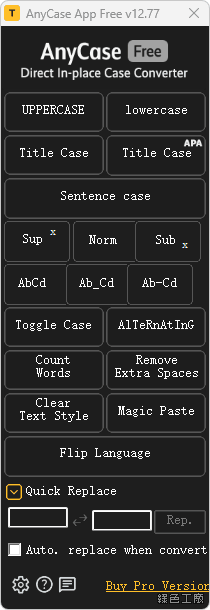
    英文大小寫如何轉換?每個英文字字首如何大寫?如何隨機英文大小寫?這樣的工具你具備了嗎?這次限時免費的就是 AnyCase App 英文大小寫段落轉換工具,支援在非常多的應用程式內使用,幾乎在系統內的任何地方都可以方便使用,不管是全大寫、全小寫、首字大寫、上標、下標等等,或是取代任何空白等等,可能各種你想要的功能都有,這樣的好工具大家可不要錯過囉!

    功能特色:
    • Multi-Program In-place Case Conversions
      AnyCase multi-program direct in-place case conversions, AnyCase App converts directly in place in hundreds of programs.
    • Convert Using Shortcuts Anywhere
      Get into almost any Windows program and use AnyCase’s global shortcuts to convert case directly where you work.
    • Quick Replace
      Quickly replace any character or word when you convert, For example replace space with hyphen “My file example.pdf” to “My-File-Example.pdf”.
    • Superscript and Subscript
      change text to superscript or subscript directly in place.
    • Paste In Blocked Fields
      Paste in websites/fields/programs that prevent you from using Ctrl+V .
    • Customize Global Shortcuts
      Define your own custom shortcuts for case conversions.
    • Count The Words
      Count The Words/Characters In The Selected Text.
    • Multiple Ways To Convert The Text Case
      AnyCase comes with 3 different ways to convert text case. The main program window, a context menu, and global shortcuts that work and hundreds of applications.
    • Custom Capitalization Of Specific Words
      Capitalize specific words exactly how you need them. Your full name, a business name, a product name etc. Include words that need to be capitalized exactly the same every time.
    • Switch Language After Typing
      Change the text language after you already started typing, from gibberish to the intended language.
    • Remove Doubles Spaces
      Automatically Remove Doubles Spaces In The Converted Text.

    限時免費:https://www.bitsdujour.com/software/anycase-app

    AnyCase App 英文大小寫段落轉換工具推薦

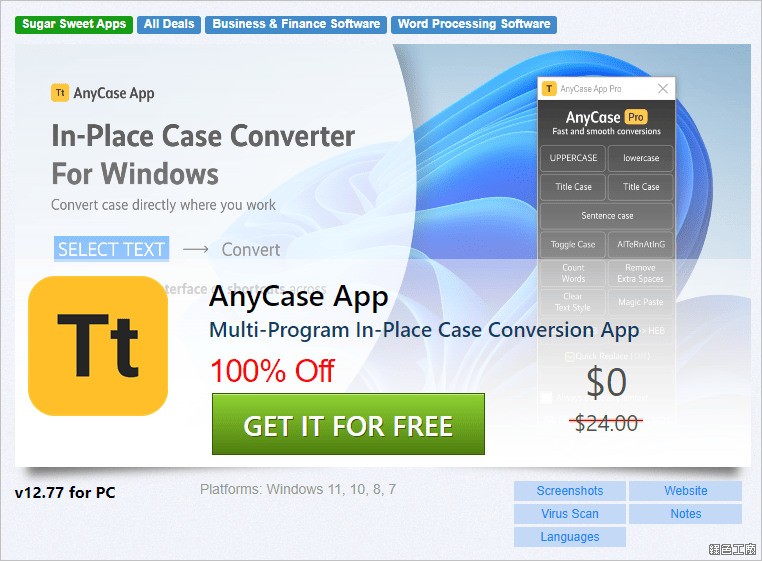
    △ 進入活動頁面之後點選 GET IT FOR FREE。

    AnyCase App 英文大小寫段落轉換工具推薦

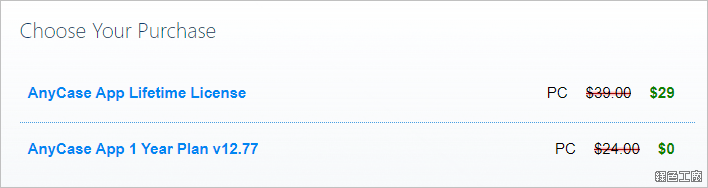
    △ 之後點選 0 元的 AnyCase App。

    AnyCase App 英文大小寫段落轉換工具推薦

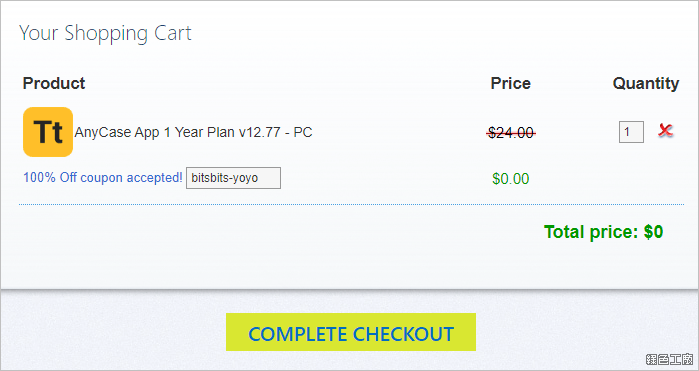
    △ 接著進入結帳程序,確認價格為 0 元之後 COMPLETE CHECKOUT 完成結帳。

    AnyCase App 英文大小寫段落轉換工具推薦

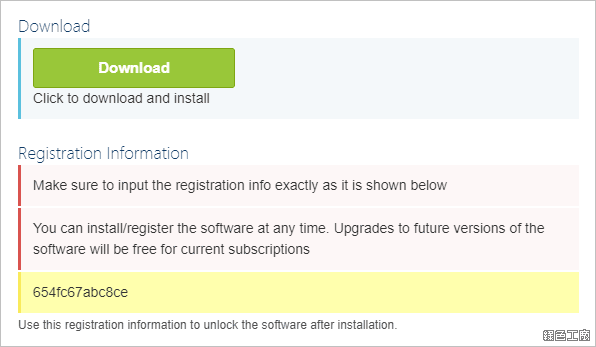
    △ 之後去信箱收信,就可以取得這次活動的軟體下載與活動序號,免安裝版可以直接到文末下載。

    AnyCase App 英文大小寫段落轉換工具推薦

    △ 開啟軟體後點選右下角的 Buy Pro Version。

    AnyCase App 英文大小寫段落轉換工具推薦

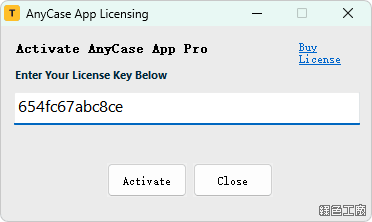
    △ 跳出註冊視窗之後貼上取得的活動序號,點選 Activate 來啟動。

    AnyCase App 英文大小寫段落轉換工具推薦

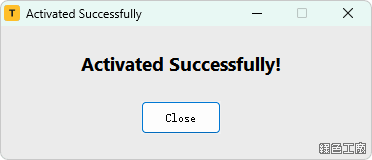
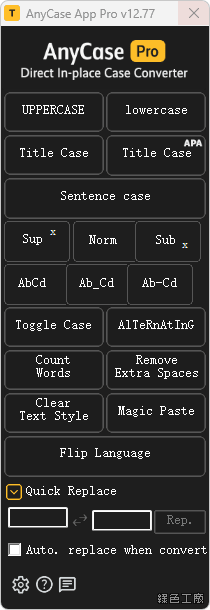
    △ 看到以上畫面就代表順利啟動囉!

    AnyCase App 英文大小寫段落轉換工具推薦

    軟體的使用其實簡單的,只要選取可以編輯的文字,之後再點選軟體上的各種功能,馬上就可以改變文字的大小寫狀態,如果不太了解每個功能的話,實際試試看就可以馬上了解囉!

    https://anycaseapp.com/

    免安裝版:
    AnyCase App 12.7.8.0.7z(GOOGLE下載)
    AnyCase App 12.7.8.0.7z(1DRV下載)
    AnyCase App 12.7.8.0.7z(MEDIAFIRE下載)
    AnyCase App 12.7.8.0.7z(RAPIDGATOR下載)
    AnyCase App 12.7.8.0.7z(MEGA下載)
    檔案大小:664 KB