- 檔案名稱 Word 加入功能變數範例,讓數字自動加總.docx
- 相關網址 http://portable.easylife.tw/5942
- 來源網址 http://9ez.me
- 分享網址
-
- 檔案標籤 ► Word 加入功能變數範例,讓數字自動加總 ► Word► 加入功能變數範例,讓數字自動加總
- 檔案下載
-
- 相關網址 http://portable.easylife.tw/5942
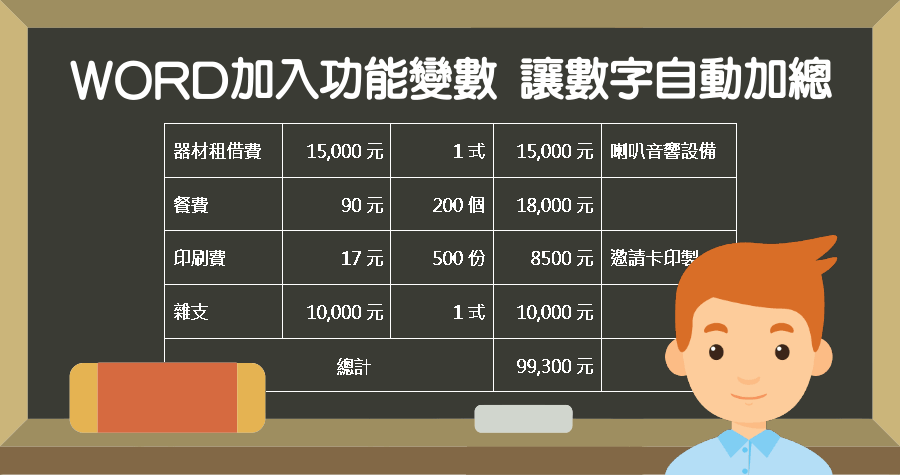
- 分享過「如何在 Word 中插入 Excel 自動加總表格,上班族必備技能」和「如何讓 Word 表格資料連動 Excel,這也是上班族基本技能」,這些方式都可以讓 Word 中的數字自動加總,避免掉數字加總錯誤的麻煩,本篇將介紹第三種方式,在 Word 中加入功能變數,讓數字自動加總。
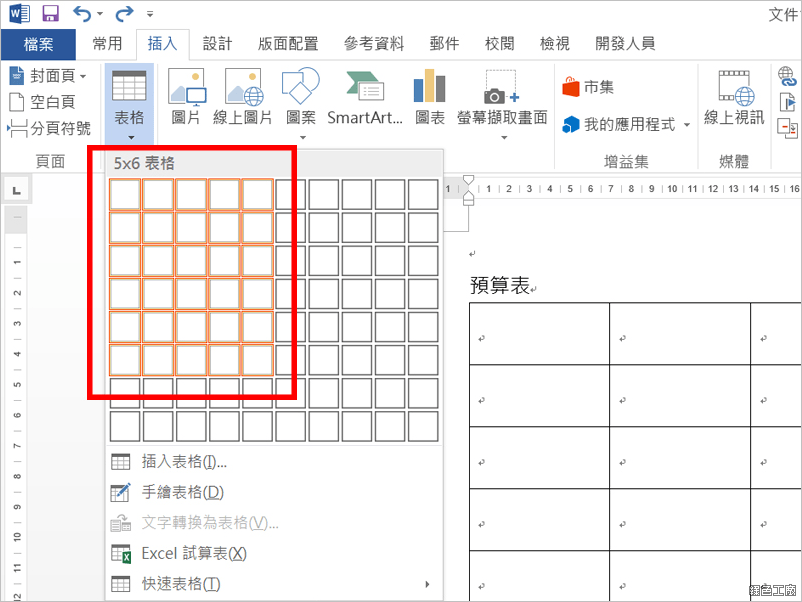
▽ 先插入一個表格,範例中使用5x6表格建立,可自行增減欄數、列數。
▽ 把相關的資訊輸入,留下需要設定公式的欄位。
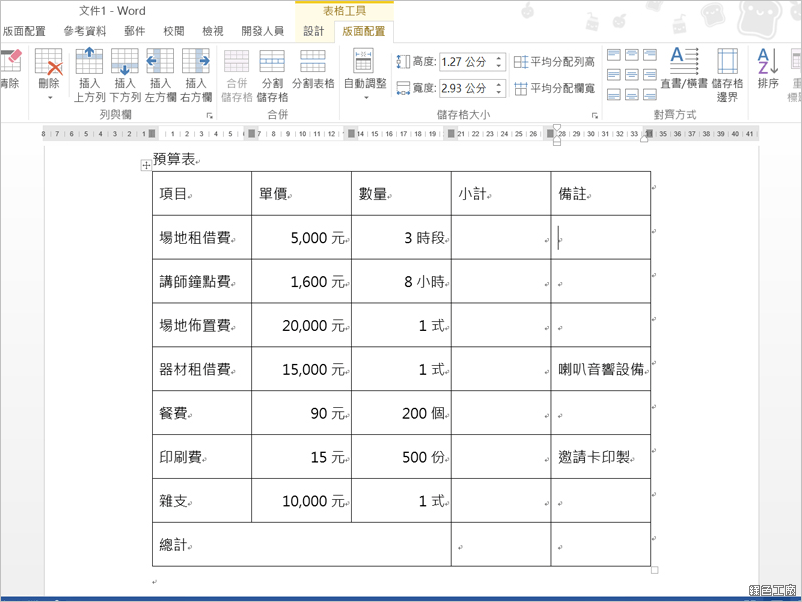
小提醒:單價及數量裡都可以加入單位,但只能出現一個數字。
▽ 在小計的欄位,工具列【插入】中【快速組件】的【功能變數】。
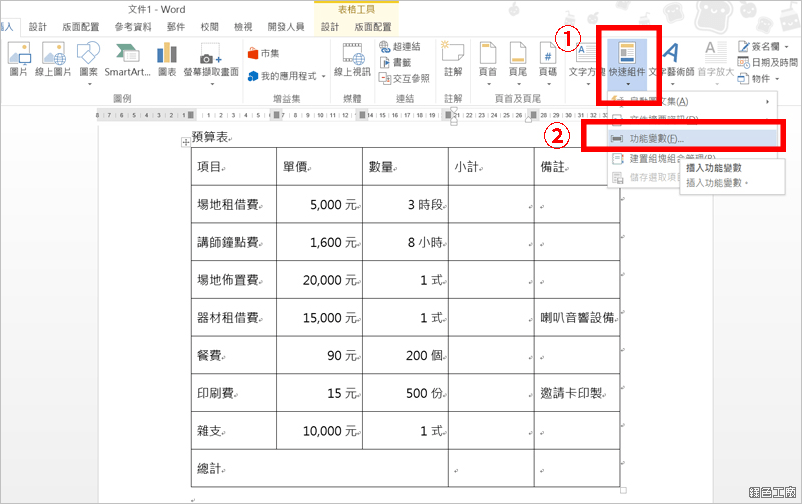
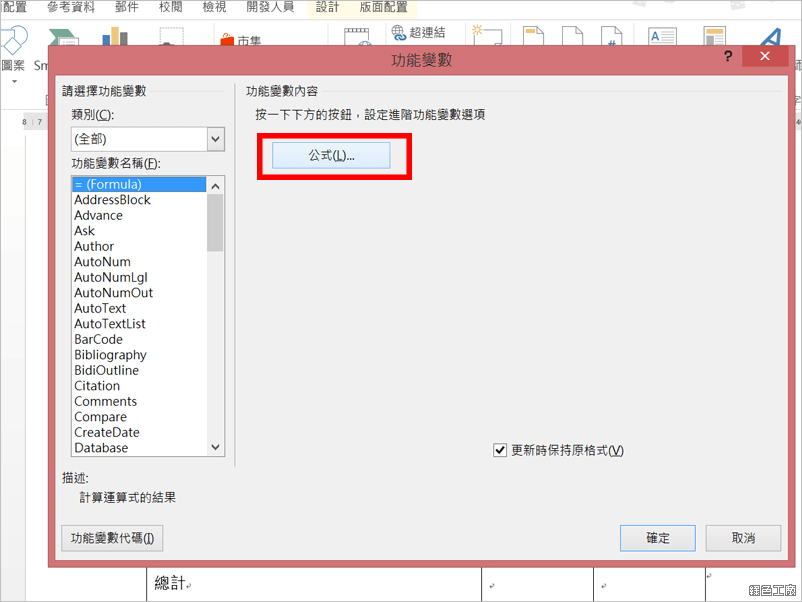
▽ 點選【公式】。
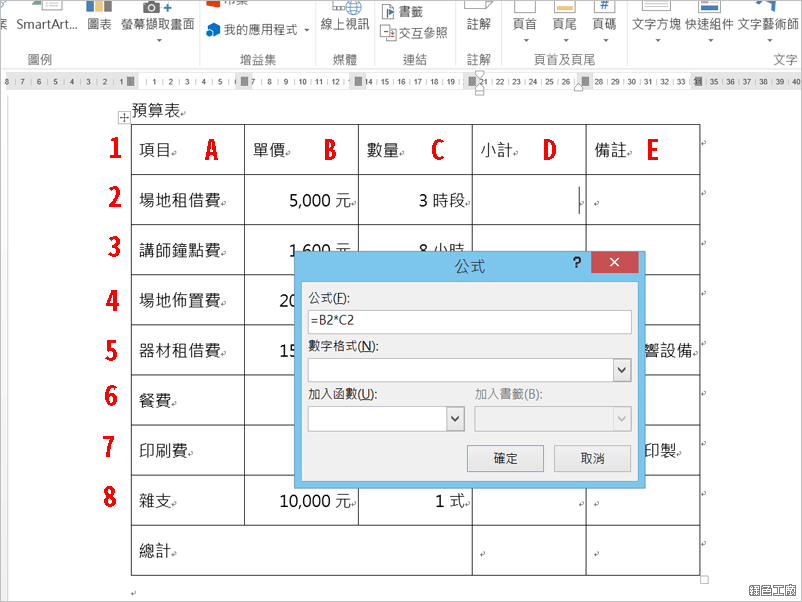
▽ 公式與 EXCEL 的方式相同,欄位為 A, B, C, D…,列則為 1, 2, 3, 4...以此類推,公式中輸入「B2*C2」。
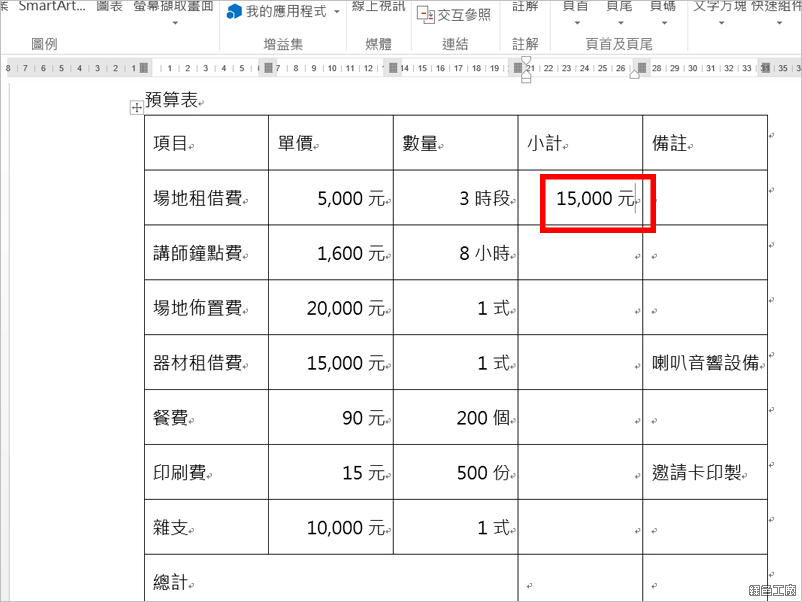
▽ 小計欄即會自動算出金額,可自行在後面加「元」。
▽ 每個小計的欄位重複上述的步驟插入功能變數。
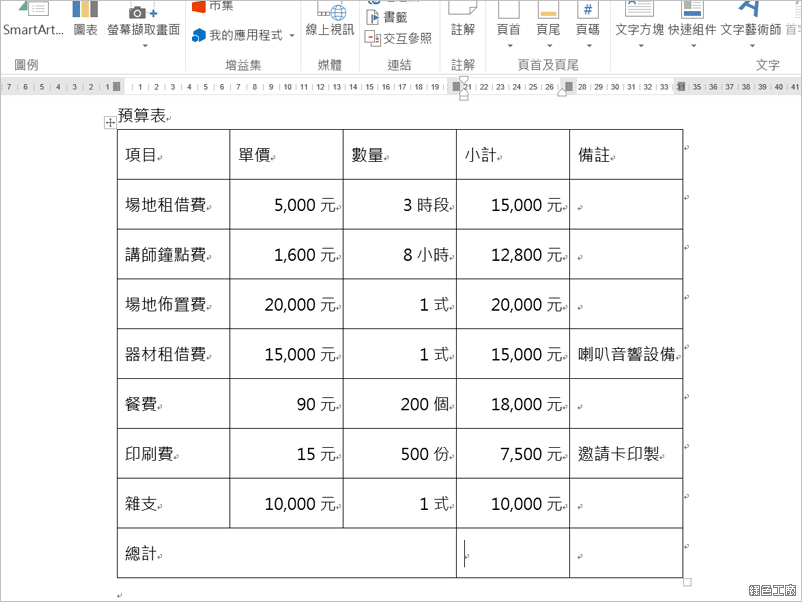
這個方式的缺點就是無法像 Excel 裡複製格式,得一直重複步驟。
▽ 編到後面很容易亂掉,小技巧就是先增加一欄跟一列,先編號上去方便找到對應的代號,設定完成後再把欄跟列刪除即可。
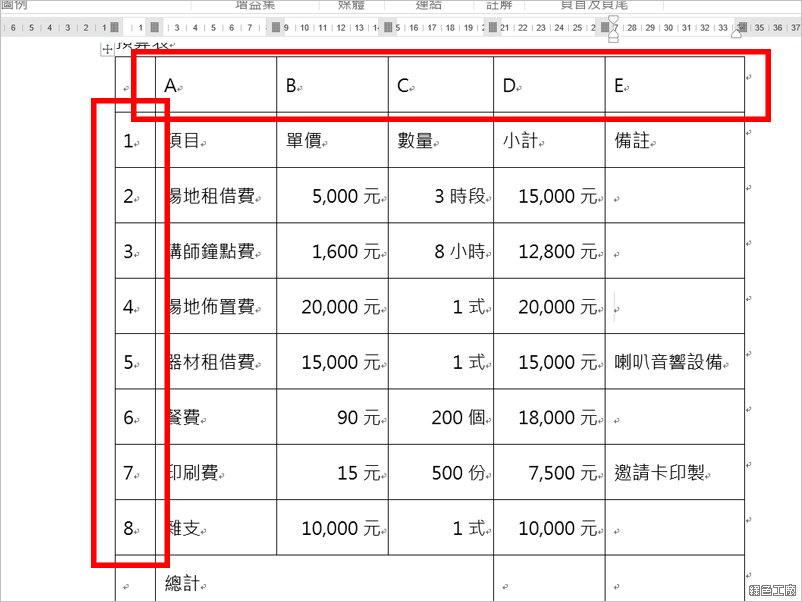
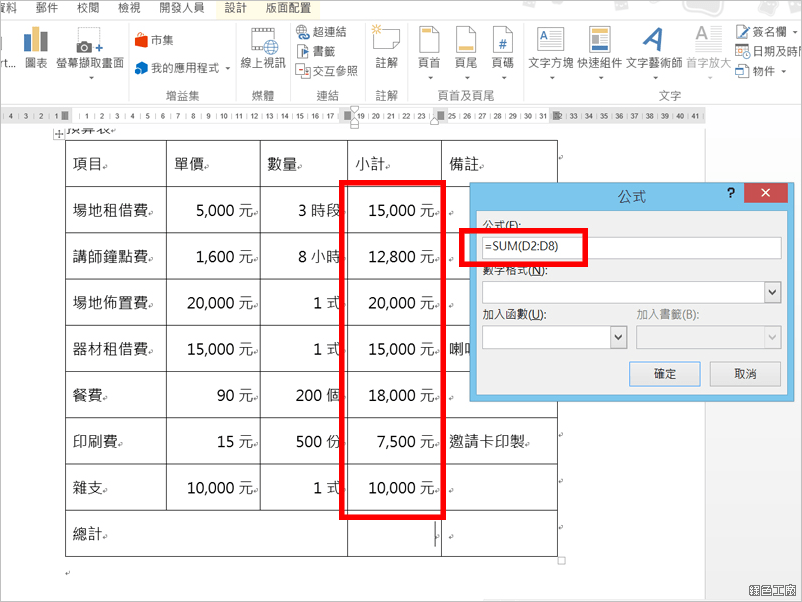
▽ 在總計欄位一樣插入功能變數,總合的公式為=sum(D2:D8)。
▽ 如果是上面的數字全部要加總,也可以將公式設為=sum(above)。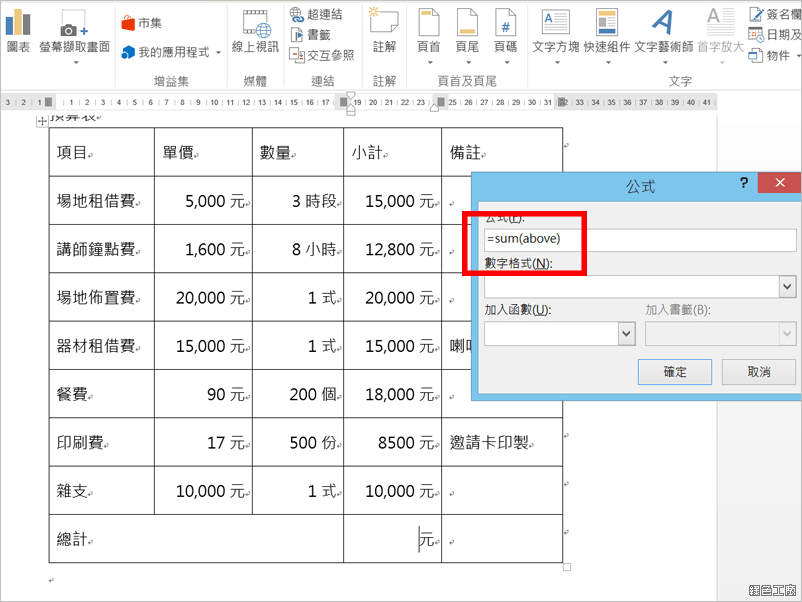
▽ 總計就會自動加總,只要公式設定正確,總合數字就一定會正確。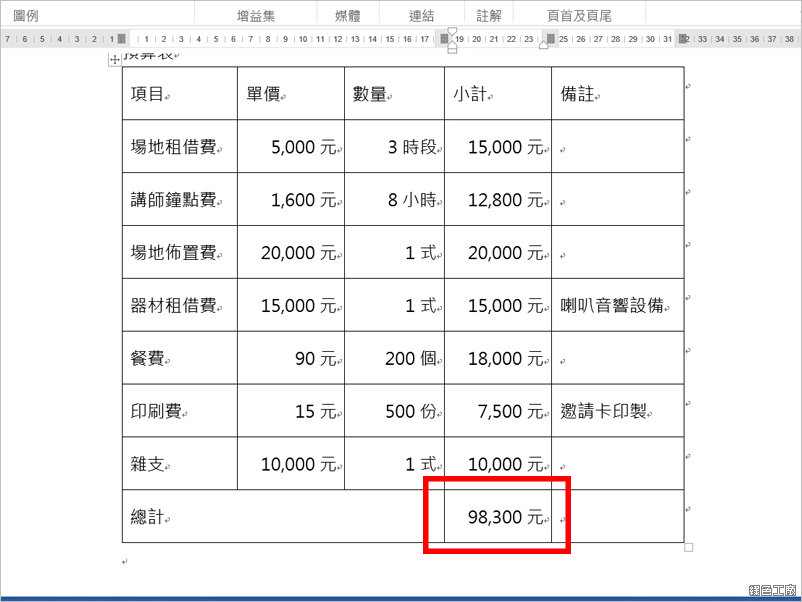
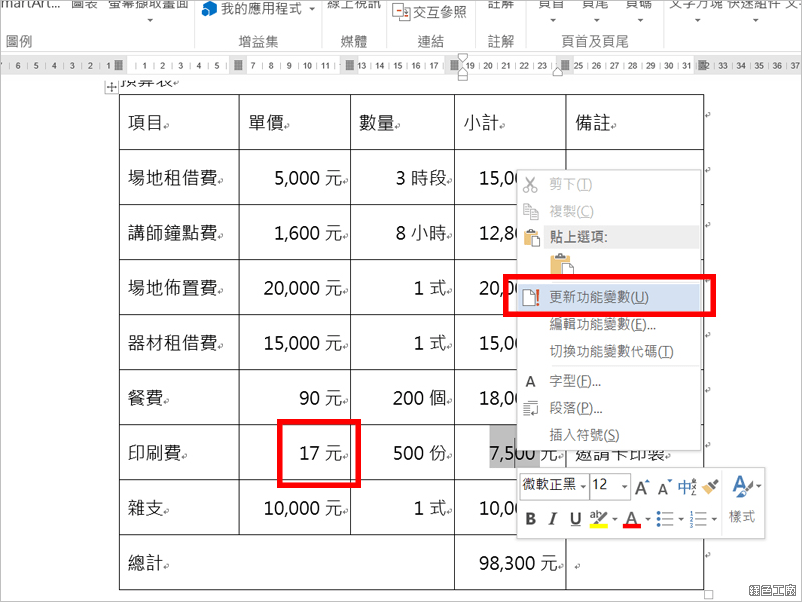
▽ 如果內容有調整,如下圖中將印刷費單價調為 17 元,就將滑鼠移至印刷費的小計欄右鍵【更新功能變數】,金額就會自動更新。
▽ 當然要記得,總計的地方一樣右鍵【更新功能變數】,總額才會正確。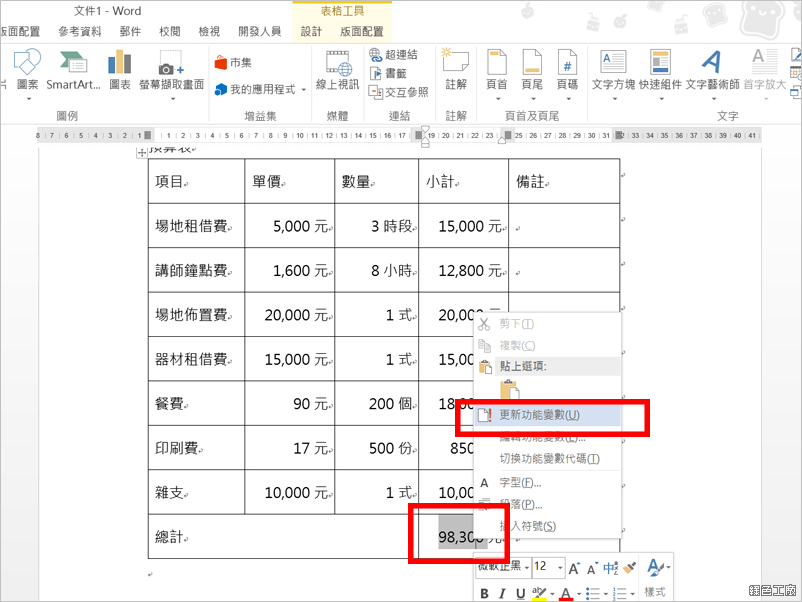
範例下載:
Word 加入功能變數範例,讓數字自動加總.docx(MediaFire下載)
Word 加入功能變數範例,讓數字自動加總.docx(Rapidgator下載)
Word 加入功能變數範例,讓數字自動加總.docx(ZippyShare下載)
Word 加入功能變數範例,讓數字自動加總.docx(YunFile下載)
Word 加入功能變數範例,讓數字自動加總.docx(本站下載)
檔案大小:23.72 KB
- ■ [today_top.title;block=li;ondata=m_event_a1] [today_top.url;htmlconv=no]
- ■ [yesterday_top.title;block=li;ondata=m_event_a1] [yesterday_top.url;htmlconv=no]
- ■ [week_top.title;block=li;ondata=m_event_a1] [week_top.url;htmlconv=no]
- ■ [random.title;block=li;ondata=m_event_a1] [random.url;htmlconv=no]

